Using Traefik with docker swarm as reverse-proxy for multiple services
Using Traefik with docker swarm as reverse-proxy for multiple services
Status: Ready to Start Type: Article
Why Traefik
Traefik is an open-source Edge Router and was built mainly to work with containerized applications, such as Docker, Kubernetes, Mesos, etc. In this article we will use Traefik as service to allow host several different services within the same VPS, in this case Linode.
Our goal is to delegate to Traefik the task of receiving requests and route them to the appropriate service.
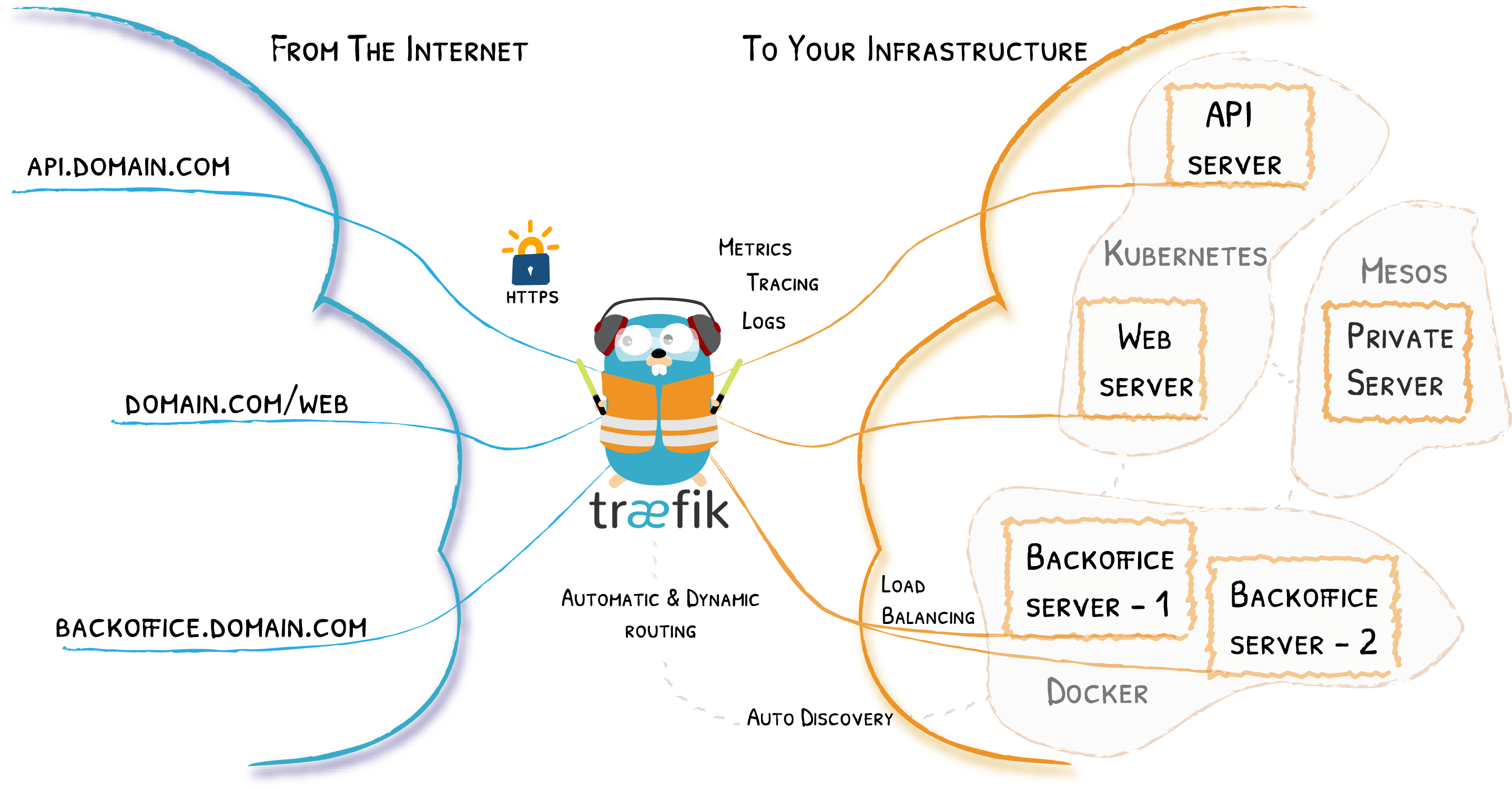
Traefik architecture - source: https://doc.traefik.io/traefik/
In the above image Traefik acts as the middle man between the internet and our infrastructure, one thing to notice is the following, all addresses listed above are the same, in our case we want to route different domains to different services. In order to achieve this we will use Docker Swarm as our container orchestration tool, it will create an inner network between our containers and allows Traefik to find our services and enable on the web.
As a bonus, we will use LetsEncrypt to automatically generate HTTPS certificates to our service, in order deploy ready for production services we will configure the DNS-01 challenge to generate and renew ACME certificates for every domain and subdomain that is listed on our provider (it could be DigitalOcean, Azure, Lightsail, etc… In our case Linode).
Configuring Docker Swarm
Docker Swarm or Swarmkit, is a cluster management and orchestration feature, embedded in the Docker Engine since version 1.12. It focuses on micro-service architecture, supporting tasks as service reconciliation, load balancing and service discovery. The main advantages of swarm over standalone containers run only by docker compose, for example, is that you are able to modify service’s configuration on the run, so networks and volumes can be created without restarting the service, It will just update itself.
Key concepts of Docker Swarm
Before diving into configuration, I would like to explain a little better how our architecture will work within Docker Swarm mode. The main aspects to know about Swarm are the following:
Nodes
The node is an instance of Docker that is participating of the swarm, and are divided by two categories:
- Manager nodes: Performs orchestration and cluster management, by default they also run services as worker nodes, but can be configured to management tasks only.
- Worker nodes: Receive and execute tasks (so called services in the next item) dispatched by the manager nodes, they also report their status to the manager nodes.
Services
The service is the task executed by the nodes, it’s specified in a docker-compose.yml type of file and have defined image and commands to execute.
Load balancing
Swarm uses Ingress load balancing to expose services you want to be reachable from outside of the swarm, they are assigned to a port and for performance purposes the requests are automatically distributed among the services.
Setting up Swarm
Once you are connected to the VPS and have the domain DNS records pointed to your IP address the setting up steps are simple.
- Configuring the manager node:
docker swarm init
In case you see an error like the following:
Error response from daemon: could not choose an IP address to advertise since this system has multiple addresses on interface wlp3s0 (2814:d51:47d4:b900:51fa:3c84:f287:7b2e and 2804:d51:47d4:b900:2b2b:d8e1:c2b2:8c12) - specify one with --advertise-addr
You will have to explictitly specify an IP address, in this case I will set the localhost as the —advertise-addr flag value, so my command is:
docker swarm init --advertise-addr 127.0.0.1
And the shell outputs:
Swarm initialized: current node (i27kixuwa8x977otg1c1gktog) is now a manager.

To add a worker to this swarm, run the following command:

	docker swarm join --token SWMTKN-1-1qqncb80vgvxflnn2m54ddc34dn7x1zru51loyitr6h5ewyr4x-amjrmq6le4kcfz2ysij28nc1v 127.0.0.1:2377

To add a manager to this swarm, run 'docker swarm join-token manager' and follow the instructions.
- Checking
Run docker node ls and the output must be:
ID                            HOSTNAME   STATUS    AVAILABILITY   MANAGER STATUS   ENGINE VERSION
i27kixuwa8x977otg1c1gktog *   thinkpad   Ready     Active         Leader           20.10.6
It means we are in Docker swarm mode, and we have one node running as manager node.
Creating a docker network
In order to containers being identifiable by Traefik, we will need to create a network that will be shared between our Traefik instance running as a manager node and all the worker instances that we want to host.
Creating this network is simple as
docker network create --driver=overlay traefik-proxy
Now we can configure Traefik and our services.
Adding Traefik to the mix
Now we are in Docker Swarm mode and created a network that will be shared among all containers that we want Traefik to identify, lets configure Traefik itself.
version: "3.6"

# The network created to connect the instances
networks:
  traefik-proxy:
    external: true

services:
 traefik:
    image: traefik:v2.4
    ports:
      - "80:80"
      - "443:443"
    networks:
      - traefik-proxy
    volumes:
      - /var/run/docker.sock:/var/run/docker.sock:ro
    command:
# Enabling dashboard and Traefik API
      - --api.insecure=true
      - --api.dashboard=true
# Setting the Traefik provider as docker in Swarm Mode
      - --providers.docker=true
      - --providers.docker.swarmMode=true
      - --providers.docker.network=traefik-proxy
      - --providers.docker.exposedByDefault=false
# Configuring http and https entrypoints as web and websecured
      - "--providers.docker.defaultRule=Host(`example.com`)"
      - --entrypoints.web.address=:80
      - --entrypoints.websecured.address=:443
      - --entrypoints.web.http.redirections.entryPoint.to=websecured
      - --entrypoints.web.http.redirections.entryPoint.scheme=https
    deploy:
      mode: replicated
      replicas: 1
      placement:
        constraints:
          - node.role == manager
      restart_policy:
        condition: on-failure
        delay: 5s
      labels:
        - 'traefik.enable=true'
        - 'traefik.http.routers.traefik.rule=Host(`traefik.localhost`)'
        - 'traefik.http.services.api.loadbalancer.server.port=8080'